Installing client
Install client
Install client
Diferent clients have different installation steps.
Follow the instructions for your operating system below to install iCommands on your computer.
Add the iRODS repository and install iCommands. Since our servers run iRODS 4.X.Y it is recommended to install version 4.3.X, since there are compatibility issues between icommands 5.0.X and irods 4.X.Y
In Anunna icommands is already installed on the login nodes, you do not need to load a module.
Install iCommands using this guide
There are two ways to install iBridges:
- As a pyhton dependency. If you know python and would like to see the code, have a look at the github iBridges-GUI repo.
-
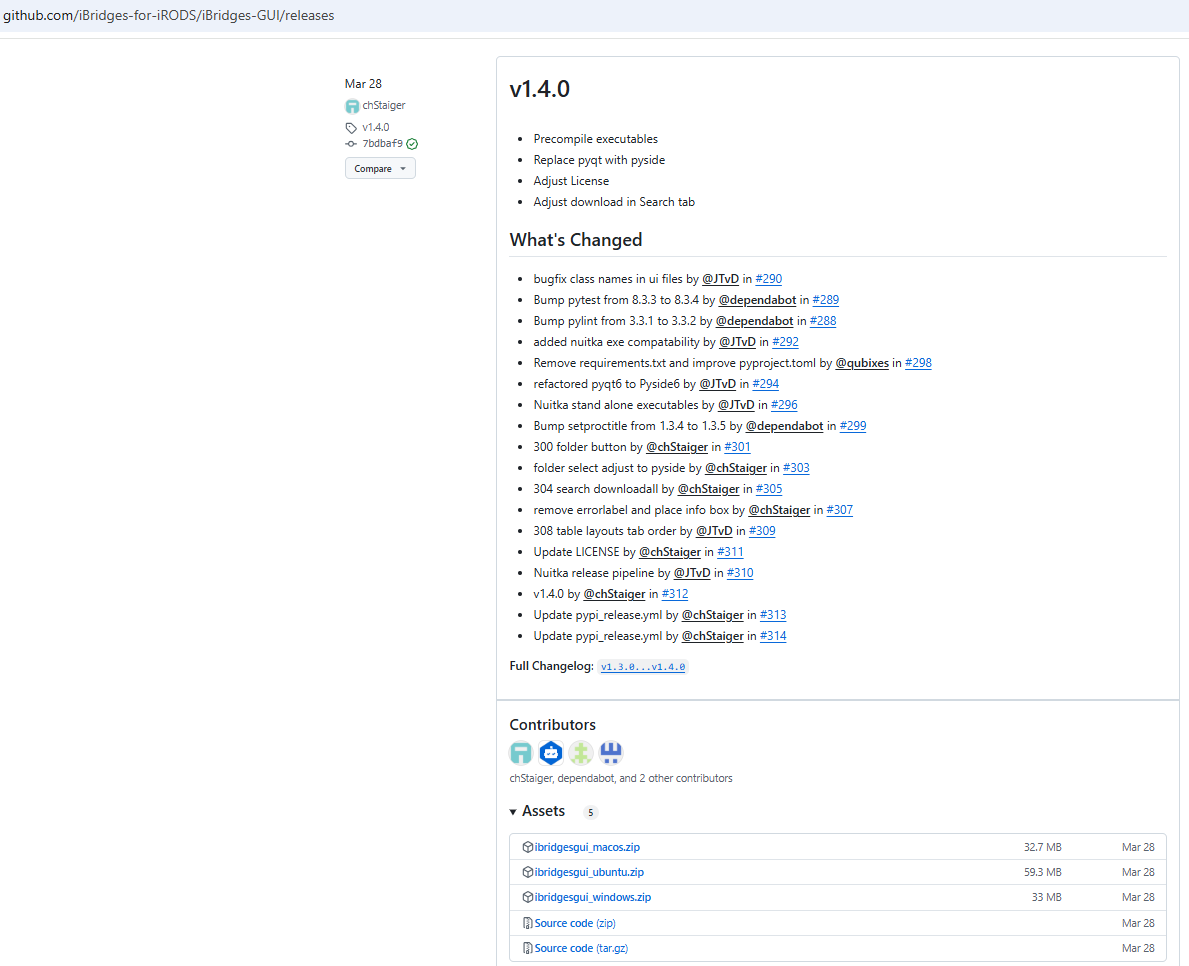
As a program. Since release 1.4.0, there is a downloadable zip by operating system. See iBridges-GUI release page.
- Download it and extract to a folder of your choosing.
- In macOS: Remove macOS quarantine attributes:
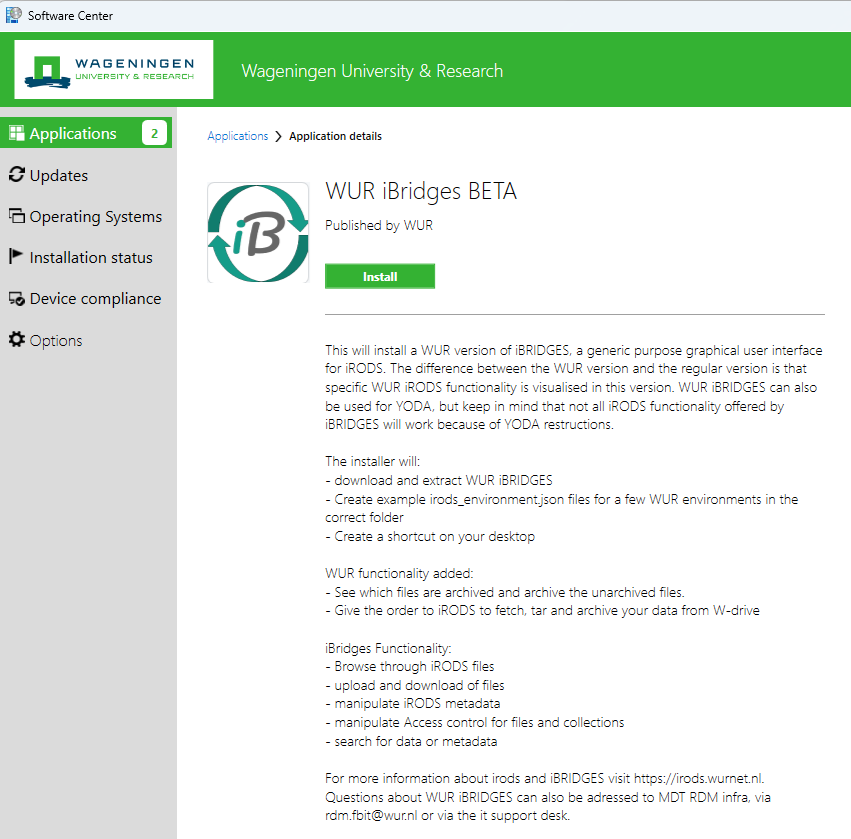
In the software center is it available as 'WUR iBridges BETA'.
Run PowerShell as admin by opening the file location of PowerShell, right clicking on it and selecting 'WUR - Run with administrative rights'.
Note: These installation steps are for users working on windows machines. For installs on other operating systems, please refer to this link.
Now, install GoCMD by copying and pasting the following script:
This script does the following:
- It creates 2 new folders called 'gocmd-irods' and '.irods' in the user profile (C:\Users\abcde001)
- Goes into the 'gocmd-irods' folder, installs and unzips gocmd.zip and gocmdv.txt file and cleans up unnecessary zip files.
- Adds the folder 'gocmd-irods' to the PATH environment variable and then exits PowerShell.
Given that python 3.9 or later is installed on your machine, open your terminal and install the iRODS client package by running:
Verify Client Installation
Verify client installation
Diferent client have different installation steps.
After installation you can see if icommands is installed successfully by using this command:
- As a pyhton dependency: Start the
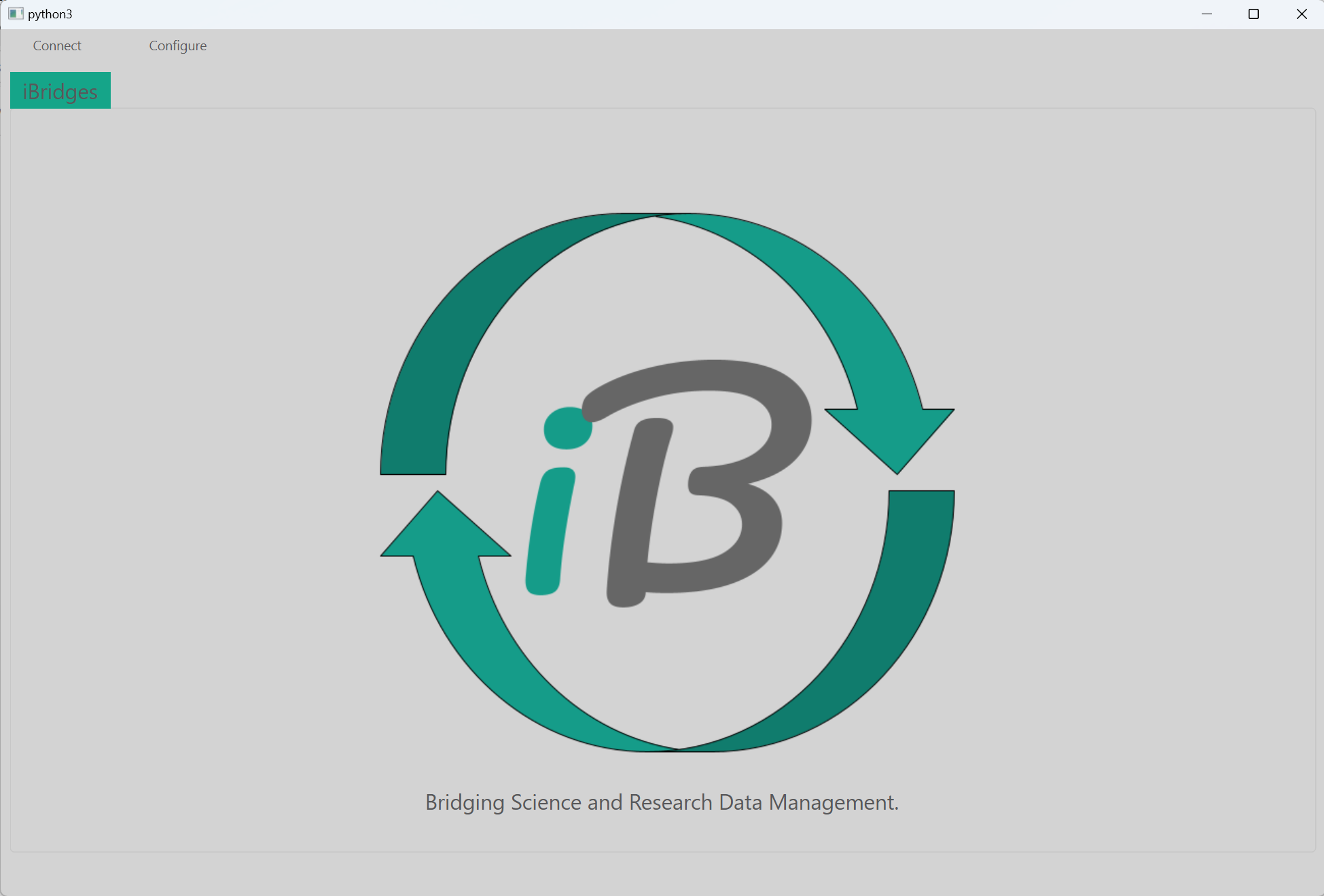
ibridges-guifrom the python scripts folder. - As a program: run the executable.
A new window will appear:
Check if the WUR iBridges is installed. There is a shortcut in the desktop.
Start powerShell again or the normal windows cmd. Then, to check if GoCMD has been installed successfully, run:
N/A (You will be notified through a message in your terminal after the installation.)