Skip to content

Step 3: Verify the Upload

List the Contents of the Collection

List the contents of the iris_data collection to verify that the files have been uploaded successfully.

List contents of a collection
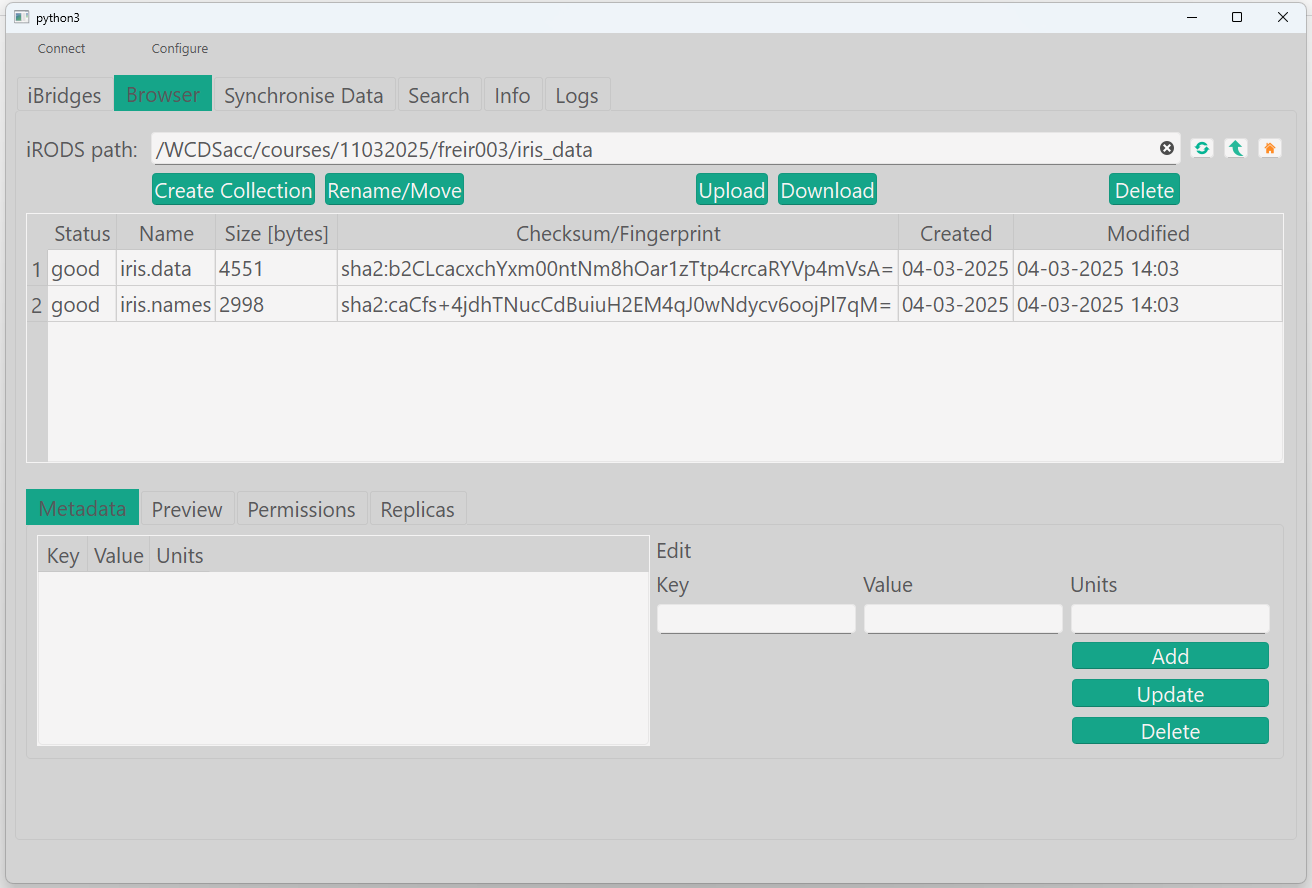
ils /WCDSacc/courses/11032025/your_username/iris_data
You should see an output similar to:

1
2
3
/WCDSacc/courses/11032025/your_username/iris_data:
  iris.data
  iris.names

View files in collection

gocmd ls /WCDSacc/courses/11032025/your_username/iris_data

You should see an output similar to:

1
2
3
/WCDSacc/courses/11032025/your_username/iris_data:
iris.data
iris.names

...
def ls(path):
    try:
        coll = session.collections.get(path)
        print(' C - ', coll.path)
        for data_obj in coll.data_objects:
            print('     D - ', data_obj.name)
        for sub_coll in coll.subcollections:
            ls(sub_coll.path)
    except Exception as e:
        print(f'Error: {e}')


# Example
ls("/WCDSacc/courses/11032025/your_username/iris_data")

Go to the newly created directory and do an ils again:

Navigation in collections
icd /WCDSacc/courses/11032025/your_username/iris_data
ils

You will see that the output is the same as before. You can move 'up' by doing:

icd ..

You can go to your 'home' folder by using

icd

  1. Explore the navigation buttons on the left
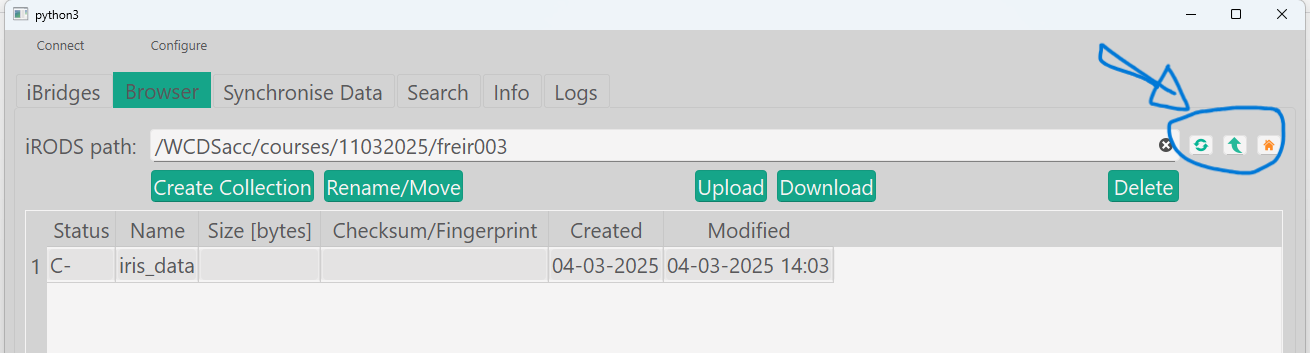
Nagivation

gocmd cd /WCDSacc/courses/11032025/your_username/iris_data
gocmd ls

You will see that the output is the same as before. You can move a directory 'up' by running:

gocmd cd ..

You can go to your 'home' folder by using:

gocmd cd

You can change the argument in the ls() function to any existing path.